

Target Tracker is a goal setting and target tracking application. You can add goals and each goal can have one or more targets. This allows you to not just identify goals, but to track your progress on your goals as well.
This user manual will show you how to use all of the features that Target Tracker has to offer. These features are the following:
- Create goals with deadlines and see at a glance how much time is remaining until your deadlines are reached.
- Create goals that track how many days you have achieved something.
- Prioritize goals so your most important goals are displayed first.
- Add numeric targets to your goals so you can measure your progress.
- Add notes to your goals so you can remember important ideas and plans for achieving your goals.
Creating Goals
When you run Target Tracker for the first time you will be presented with an empty goals list. At the top of the screen you will find a plus button.
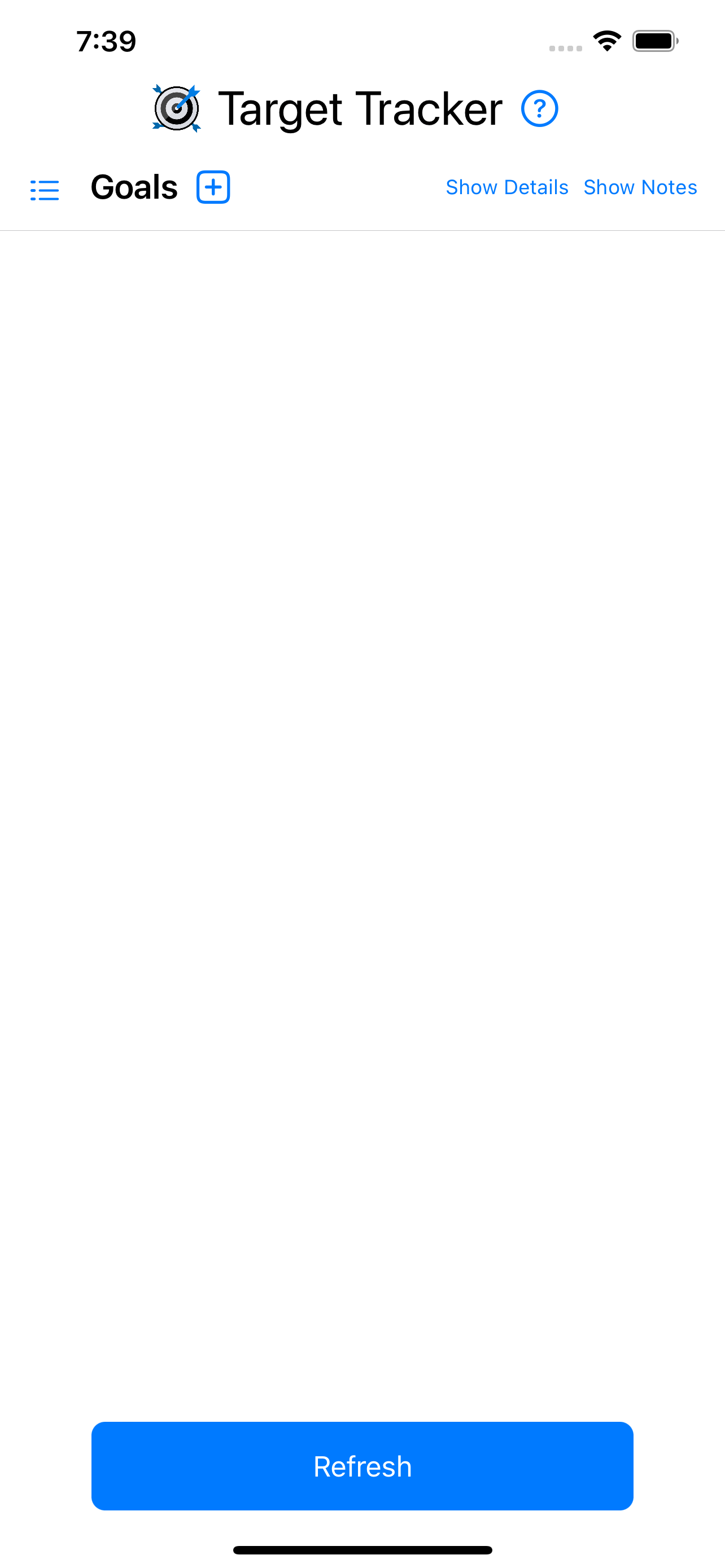
Pressing the plus button opens the new goal screen. On this screen you fill in the details for your goal.

To create a goal, enter the following information:
- Name: Enter a name for your goal.
- Choose a goal type: Here you choose if you want to set a deadline or if you want to track how many days you have achieved something.
- Deadline or Start Date: If you picked Deadline as the goal type you then choose a deadline for your goal. If you picked Days Achieved for your goal type you enter the day you want to start tracking what you want to achieve.
- Priority: Enter a numeric priority for your goal. This will sort your goals with a priority of 1 coming first in the list of goals, 2 coming second, and so on.
- Notes: You can also enter notes for your goals. These can be reminders or information you want to remember about your goal.
Touch the Save button in the top right corner of the screen to finish creating your goal. Your goal will now be displayed on the main screen.

By default, your goals are displayed without the details or notes showing. If you want to see more details about your goals, you can press the Show Details and Show Notes button in the top right corner of the screen to turn on the display of goal details and notes. Your goals display will now details and notes.

Goal Details
After you create some goals and turn on the display of goal details, you will see the following information for each type of goal:
- For a goal that is a deadline:
- You will see the deadline and the number of days remaining until the deadline is reached.
- There is also a completed toggle button that you can turn on after the goal is completed.
- For a goal where you are tracking days achieved:
- You will see the start date and a count of the days that you have achieved this goal.
- There is also a completed toggle button that you can turn on after the goal is completed.

Editing a Goal
If you want to edit a goal, press the gear icon under the goal’s name. This will open the goal editing screen where you can change the goal’s name, type, date, priority, and notes. You can also use the edit screen to delete the goal if you no longer want to track it.

Goal Targets
In addition to tracking goals, you can also add numeric targets to a goal. This lets you measure your progress towards achieving that goal.
To create a goal target, press the plus button under the goal’s name. This will open the new goal target screen, where you can enter the details for your goal target.

On the new goal target screen you enter the following details:
- Name: The name that identifies what your goal target is for. For example: weight.
- Target Type: The target type for the goal indicates if you want to track a value that will increase over time or a value that will decrease over time.
- Start Value: Enter the starting value for your goal target. This is the value you are starting with, and it is the value that you want to increase or decrease over time.
- Target Value: Enter the value that you want to achieve for this goal target.
- Current Value: Enter the value that you are currently at. Typically this will be the same as the start value when you first create your goal, and you will later edit the goal target to change this value when the value you are tracking changes.
- Units: Optionally you can specify the units that your goal target is tracked in.
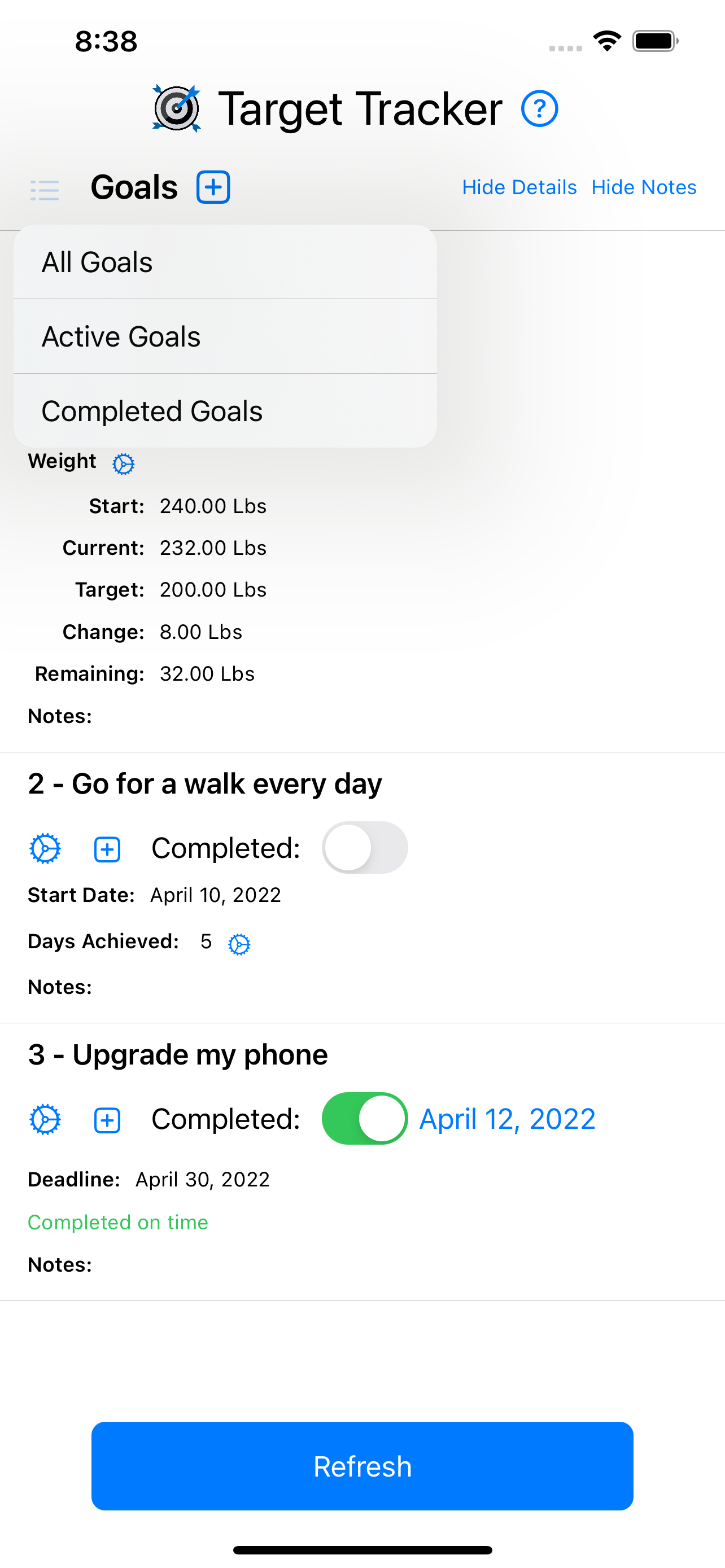
After you create a goal target it will be displayed below the goal that you created it for. The information displayed will be the start value, the current value, the target value, the amount that the value has changed, and the amount remaining until the goal target is achieved.

To change the current value for a goal target, you use the edit screen. To access the edit screen, press the gear icon to the right of the goal target’s name. This will open the edit goal target screen.

On the edit screen you enter a new value for the goal’s current value property. Then you press the Save button in the top right corner of the screen and the new current value for your goal target will be displayed on the main screen.
You can also use the edit goal screen to change the name of the goal target, the target type, the start value, the target value, or the units. You can also press the Delete button to delete your goal target if you no longer need it.
Tracking Days Achieved
One of the goal types you can choose when creating a new goal is the Days Achieved goal type. This will create a goal that tracks how many days you have achieved something.
To record a day when you have achieved your goal, press the gear icon displayed to the right of the words “Days Achieved”. This opens a screen showing which days you have achieved your goal and there is a plus button at the top of the screen that you press to add a day to the list.

To add a day that you have achieved your goal, press the plus button and choose the date that you achieved the goal. Then press the OK button. The day will be added to the list.
On the days achieved screen you can also remove a day from the list. Just press the trash can button beside the day to remove it from the list.
Marking Goals as Completed
To mark a goal as completed, press the toggle button beside the word Completed below the goal’ name. The goal will be marked as completed and a completion date that defaults to today’s date will be displayed. The completed goal will then be moved to the bottom of you goals list so that active goals will be displayed above completed goals.

If you completed the goal on a different day, you can press on the completed date to open a date selection control. You can then pick the day you actually completed your goal.
Filtering Your Goals List
Target Tracker provides a list filtering button that you can use to choose which goals are displayed. You can choose to view all goals, active goals, or completed goals. Just press the list button in the top left corner of the screen to open a filter menu, then press on the filter option you want to use.
Accessing the App Info Screen
Target Tracker provides a help info screen where you can view the version number of the application. To access this screen, press the question mark button at the top of the screen. This will display the app info screen.

The app info screen provides a User Manual button and a Close button. Press the User Manual button to open this user manual in your phone’s web browser. Press the Close button to return to the main application screen.